

Is it easy to choose a 4K monitor for color grading in DaVinci Resolve (Amazon, B&H)? Or is it a lot more complicated than it seems?
This video tells you like it is:
Since this video was made I’ve not only setup my grading system but have also completed many projects on it, including a feature film released in theaters. I’ve updated the article with all the added wisdom I’ve gained over the years.

What I mean by 4K monitoring
You can take things the ‘easy’ way, or the professional way. I mean the professional way:
- Should you choose 4K (4096) or UHD (3840)? YouTube prefers UHD over DCI 4K, but for cinema you need DCI 4K if possible. I’ve used both.
- What frame rate? I finish most of my projects in 25p, so up to 30p is good enough. To monitor 4K up to 60p you need different gear. Films are typically 24 fps.
- Do you want 4:4:4 or 4:2:2? I would like to monitor RAW footage, but that’s not possible, yet. Therefore, I require 4:4:4 (RGB), though the monitor should accept at least 4:2:2.
- How important is motion? It is important for a true monitor to support the correct rendition of motion at different frame rates – 23.976, 24, 25, 29.97, etc. Most consumer displays can’t do this. For cinema playback this is a critical feature, because you miss a lot of the motion artifacts that fail QC later.
- What color space? I need Rec. 709, which also means white levels at 100 nits and black levels below 0.5 nits. Other important color spaces are DCI P3 and any of the three HDR systems. Whatever you need, you need 100% and full compatibility with the standard being monitored or graded for.
- 8-bit or 10-bit? 8-bit is good enough, though 10-bit is the standard for professional workflows. Nowadays 10-bit monitors are everywhere, so this is no longer a tough choice.
- Displayport, HDMI or SDI? There are so many flavors here, for the choices I’ve made above I need Displayport 1.2 or HDMI 2.0 or 12G-SDI.
The answers to these questions dictates your strategy. Obviously it’s not as simple as connecting any monitor to your computer and calling it professional.
The true and correct interpretation of the video signal is paramount.
What I use
As explained in the video, I was leaning towards two possible systems:
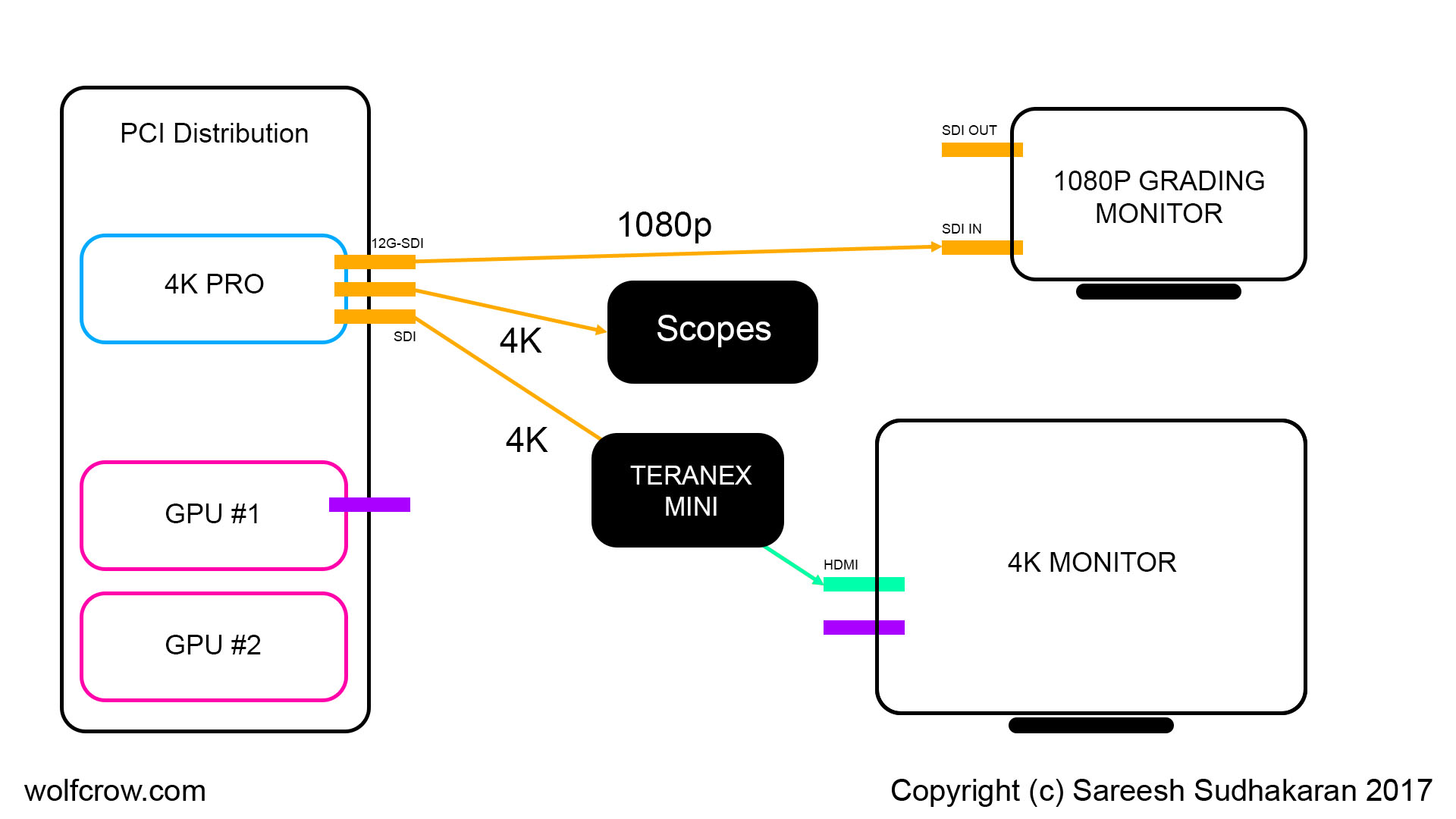
The Decklink 4K Pro (Amazon, B&H) has only SDI outs. I can use all of them, one downconverted to 1080p to an FSI monitor (or equivalent). The Teranex Mini converts 12G-SDI to HDMI 2.0 to drive the 4K display.
The other SDI out (or the SDI out from the grading monitor) goes to an Atomos Shogun for scopes.
As an alternative strategy, I also considered this one:

The disadvantage with the latter model is the 4K monitor becomes the GUI, which is not the same as using it as a reference monitor. This also taxes the GPU. If you have a powerful GPU, it doesn’t matter, though.
Remember, the output from the GPU (in my case it’s a 1080 Ti) is typically 8-bit (unless it’s a Quadro or Firepro).
What did I opt for?
I opted for the second setup. I went with one single 1080 Ti (now seems like a dinosaur but still performs like a beast). This was connected via Displayport to a 4K LG GUI monitor. I also connected a second Dell monitor via HDMI to the same GPU.
That’s two displays on one GPU, and it never mattered in any tangible way.
The Decklink Pro was connected to a Flanders Scientific DM240. I love the monitor, and it has helped me a lot. However, I still regret the purchase because it cost me as much as an OLED version, I think the DM250, in India. And a few years later FSI left the Indian market. So I can’t even resell it! Once it’s done, it’s dead weight.
I used a Calibrite (then X-Rite i1 Display Pro) (Amazon, B&H) probe to calibrate my GUI monitor. It matched the DM240, for about a month. Then it started drifting again. Consumer-grade monitors can’t hold on to the colors, so you’ll have to calibrate them every month, if not sooner.
Anyway, this setup has helped me grade and finish YouTube videos, broadcast and OTT content, and one film finished in 4K for a theatrical release. I’ve done 4K to 8K work, and this setup sings at 6K. With another 1080 Ti I would have managed 8K, but 8K is still not here! I never needed a Teranex either.
Today, graphics cards have grown more powerful. I would get one RTX 4090 or better (get a GPU with as much RAM and CUDA cores as possible). I would avoid AMD GPUs because Resolve does way better with Nvidia GPUs.
I hope you found this useful. Let me know if you have any questions.

can i have your contact details.
Thank you for your video. very useful for me. planning to go for a Davinci Resolve setup for my own grading & editing. But got stick with confusion. could you please guide me? if possible.