
In this lesson we’ll go over
- How to tether the a7R II using PlayMemories App and Smart Remote Embedded:
- How to import images to your computer using Wireless Auto Import
First, how to tether the a7R II using PlayMemories App and Smart Remote Embedded:
Links:
- PlayMemories App (iTunes, Google Play Store) – it’s free.
- Smart Remote Embedded – should come with your camera. Menu D > Application List > Smart Remote Embedded
Second, how to import images using Wireless Auto Import:
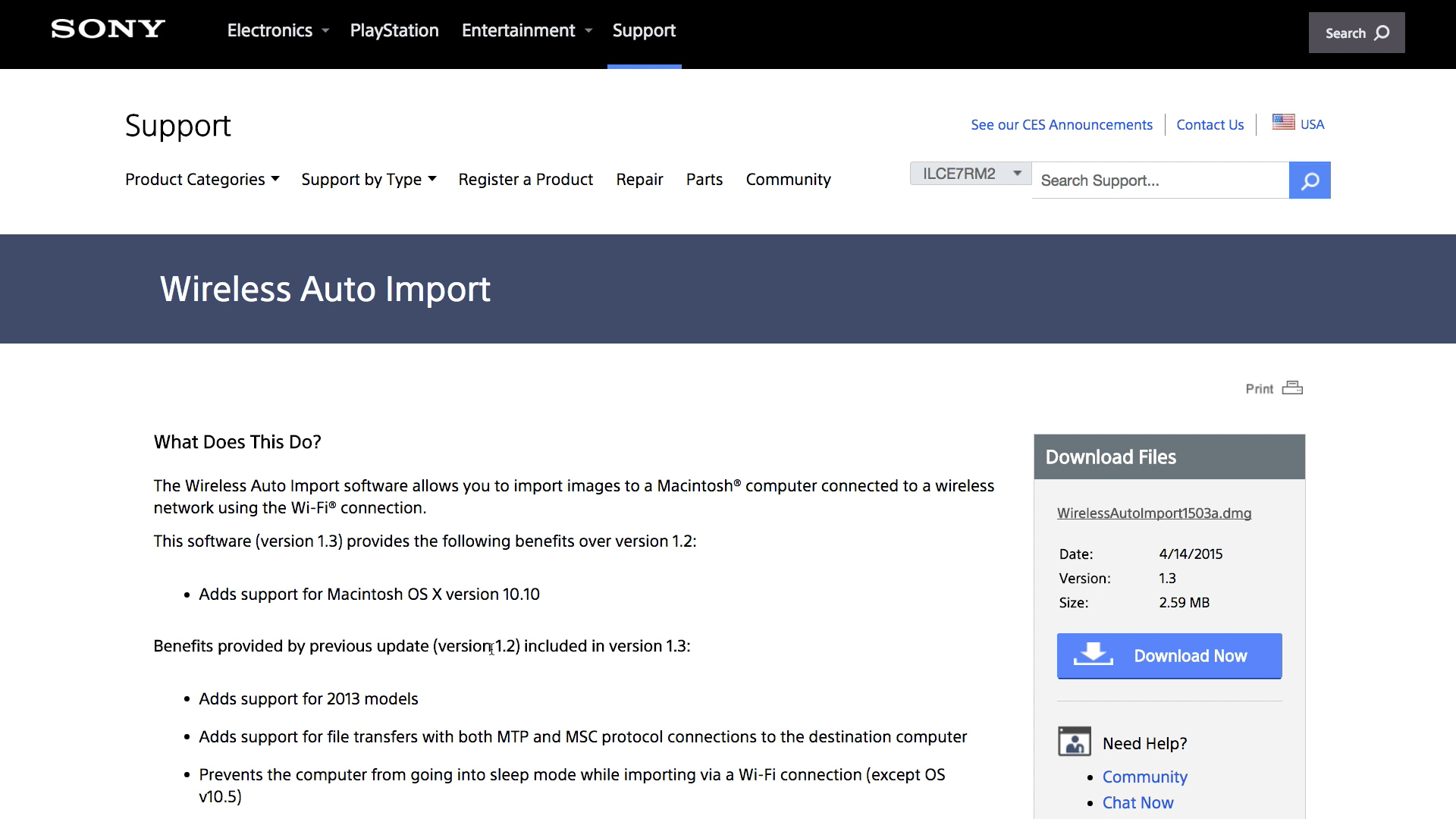
Download and install Wireless Auto Import from the support page:
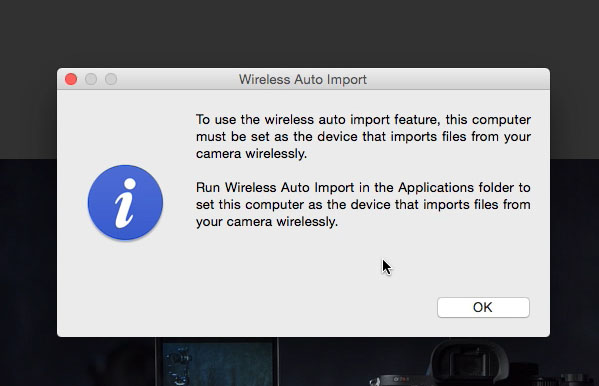
After installation you’ll get this message:
Launch the application. Your screen should look like this:
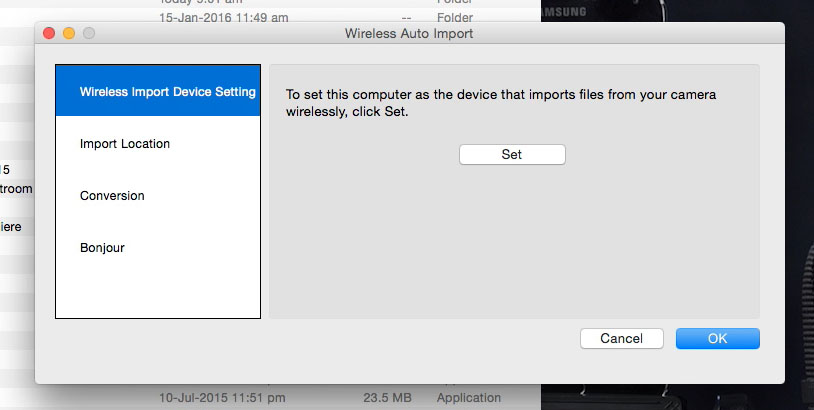
Now connect the camera to the computer via USB, and it should say ‘Mass Storage’.
Click Set, and it should work: 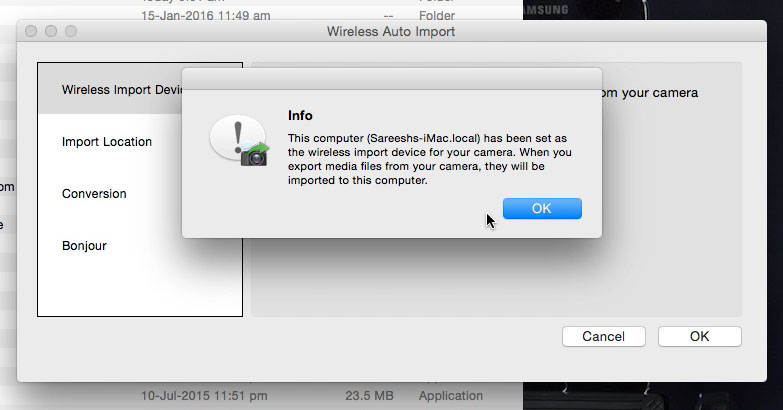
Now select the folder you want to import files (by clicking on Import Location). When you’re done, click OK.
Disconnect the camera.
Now, go Menu C > 1 > Send to Computer. You might need to register the access point the first time, but eventually it will show ‘Sending…’. You’ll see this popup (for Macs):
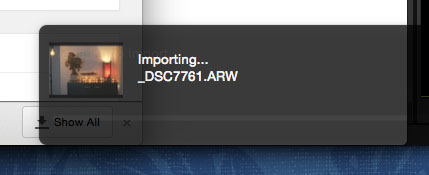
The speed is awfully slow for 42 MP RAW files, so it’s better not to send images or video this way.
Takeaways
There is a lag, so wireless shooting isn’t for capture-the-moment shoots.
You can’t control important camera settings via the app, so you need to use the camera instead.
You cannot control ISO, shutter or aperture, only Exposure Compensation.
No control of picture profiles for video.
You can store a still frame in your smartphone at the same time it records in camera. No movies, though.
Don’t use Send to Computer or Smartphone via Wi-Fi if you value your time. Best to use an SD card reader or USB.
Bottom line, it’s great as a remote control, but not much else.
