

In this article I wanted to share the results and best settings of tests I conducted for a screener of my film Gin Ke Dus, mainly for Vimeo. I wanted an online version that best represented the grade and film grain.

These tests are specific for any feature film or project graded to either DCI-P3 or Rec. 709. I used Davinci Resolve Studio Version 18.6.3 Build 19 for these tests. HDR wasn’t a concern for my film.
If you’re grading videos strictly only for YouTube or Vimeo, you might want to head over to the results directly.
The primary deliverables for a low budget feature film are:
- An OTT grade version, Rec. 709 Gamma 2.4
- A DCP version, 2K DCI-P3 Gamma 2.6
Why is this even a problem?
Typically, when you grade for the web, you don’t set your gamma to 2.4. It’s standard practice to set it to 2.2. This is why it’s important to understand the workflow and choices made.
If you export a video according to YT or Vimeo specs directly from a Gamma 2.4 or 2.6 timeline, you don’t see the same grade in terms of contrast and Film Grain. Here’s what you’re dealing with:

My film was graded to Gamma 2.4, but it looks a bit washed out on Vimeo and YouTube.
Let’s start at the beginning by understanding my master file. If you’re only interested in the final result, click here.
The Digital Source Master
The first thing you need to do, in my opinion, is to render your entire film to the best possible codec. All deliverables will be made from this source. The best options are:
| Codec | Chroma Subsampling | Data Levels | When to pick |
|---|---|---|---|
| 12-bit DPX or 16-bit TIFF image sequence | 4:4:4 | Full | For feature films |
| 12-bit Prores 4444 or 12-bit DNxHR 444 | 4:4:4 | Full | The next best thing with a smaller file size. For micro budget feature films, documentaries, web series, etc. |
| 10-bit Prores HQ or 12-bit DNxHR HQX | 4:2:2 | Video* | When your source files are 10-bit or less, and no release DCPs are expected. You could use it for DCPs for film festivals but I don’t see the point. |
For best results you want to stick to the first two options, where there’s no chroma subsampling involved and you have the best possible bit depth for your source media.
I picked DNxHR 444 because I was grading on a Windows machine. I graded to a calibrated Flanders Scientific DM240 in Rec. 709 Gamma 2.4. The grade was verified directly and via a DCP creation process at Prime Focus in Mumbai. That’s the best I could hope for, for my micro budget feature film.
So this DNxHR 444 4K file is my Digital Source Master, or DSM. All deliverables are created from this source file. The audio is separate with a theatrical 5.1 mix, an OTT 5.1 mix/Atmos mix and a Stereo mix.
Vimeo and YouTube specifications
The following are as of writing this article. It can change in the future so please check the respective websites for latest information.
Here’s a table of the specifications expected, for SDR:
| Website | Resolution | Bit Rate | Bit Depth | Color | Data Level | Typical Codec* | Color Tag Expected |
|---|---|---|---|---|---|---|---|
| Vimeo | 4K 24fps | Up to 60 Mbps | 10-bit 4:2:0 | Rec. 709 | Video | H.264 High or H.265 Main10 | 1-1-1 |
| 2K 24fps | Up to 30 Mbps | 10-bit 4:2:0 | Rec. 709 | Video | H.264 High or H.265 Main10 | 1-1-1 | |
| YouTube | 4K 24fps | Up to 45 Mbps | 8-bit 4:2:0 | Rec. 709 | Video | H.264 High or H.265 Main10 | 1-1-1 |
| 2K 24fps | Up to 16 Mbps | 8-bit 4:2:0 | Rec. 709 | Video | H.264 High or H.265 Main10 | 1-1-1 |
The two things most people get confused about are Data levels and Color Tags.
Data Levels
The DSM of my feature film Gin Ke Dus was Full Data Levels, which means it included super white and black information. For 10-bit video, the code values can range from 0 to 1023. Full takes advantage of 4-1023, which is the maximum expected.
Rec. 709 display doesn’t really expect that. It expects Video Levels. This terminology is in current Blackmagic Design Davinci Resolve speak. Video levels only use between 64-940 of the entire 0-1023 range, and your entire grade and video is expected to be between 64-940.
If you’re grading for a Rec. 709 Gamma 2.4 finish, as I was, you have to ensure your monitoring levels are Video Levels. Your project and DSM stays at Full levels. But, monitor in Video so when Resolve makes the conversion under the hood when you export, everything will happen automatically and correctly.
For more information please read the Data Levels chapter in the Resolve Manual.
What happens if you don’t pay attention to this, and export Full levels by mistake? Your footage will change contrast as both YouTube and Vimeo (as well as most players) expect Video Levels for Rec. 709.
If you do see that happening with your project, then make sure Data Levels are set correctly first. Then worry about the rest.
My DSM was exported to Full range DNxHR 444, and it must be converted to Video Levels for Vimeo or YouTube to read properly. This is an important conversion that Resolve takes care of under the hood, but you could brute force it with Resolve Color Management so there are no surprises.
In fact, I encourage and recommend the brute force method for feature films and other serious projects.
In the Delivery Page, ensure the exported levels are Video and not Auto or Full. That’s all you have to do, really.
Next, about Color Tags.
Color Tags
If you get information on any video file, you’ll see a color tag like 1-1-1 or 1-2-1:

These numbers actually mean something. They are Coding-independent code points (CICP). They are defined by the ITU H.273 document T-REC-H.273-201612. The three numbers stand for:
- First – Color Primaries (what we call Color Space)
- Second – Color Transfer Characteristics, Transfer Function (what we call Gamma)
- Third – Color Matrix Coefficients (YCbCr or Chroma Subsampling)
For true Rec. 709, these are the values: 1-1-1. They correspond to:
- Rec. 709 or sRGB Color spaces (primary)
- Rec. 709 Gamma 2.2 or 2.4 (transfer function)
- 4:2:0 or 4:2:2 or 4:4:4 chroma subsampling (RGB is value 0)
Here’s a simplified table of what Resolve writes to (Color Space and Gamma are Tags you select in the Delivery Page):
| Color Space | Gamma | Primaries | Transfer Function | Matrix |
|---|---|---|---|---|
| Rec.709 | Rec.709 | 1 | 1 | 1 |
| BT.709 | Gamma 2.4 | 1 | 2 | 1 |
| BT.709 | Gamma 2.2 | 1 | 4 | 1 |
| sRGB | sRGB | 1 | 13 | 1 |
Tag 2 in the Transfer Function is Unspecified, and Resolve uses it to write Gamma 2.4. This plays back perfectly in Quicktime on Macs when tagged so. Blackmagic Design builds Resolve for Macs first and foremost, as they have clearly stated in the manual (last time I read it, a few years ago).
However, both YouTube and Vimeo do NOT read 1-2-1. They assume it’s still 1-1-1. This is also true of any other transfer function value. Anything other than 1-1-1 is automatically interpreted as 1-1-1.
Vimeo doesn’t specify color tags, but YouTube does. This is what YouTube officially recommends:
| Color Space | Color Transfer Characteristics (TRC) | Color Primaries | Color Matrix Coefficients |
|---|---|---|---|
| BT.709 | 1 | 1 | 1 |
YouTube will change whatever tags you have and try to conform them to 1-1-1. They have an official methodology for this:
| When | YouTube Action |
|---|---|
| The upload color space has unspecified TRC. | Assumes BT.709 TRC. |
| The upload color space has unknown or unspecified color matrix and primaries. | Assumes BT.709 color matrix and primaries. |
| The upload color space mixes BT.601 and BT.709 color primaries and matrix with specified values. | Uses the color matrix to override the color primaries and make them consistent. |
| The upload color space mixes BT.601 and BT.709 color primaries and matrix, and either primaries or matrix is unspecified. | Uses the specified value of color primaries/matrix to set and override the unspecified one. |
YouTube also converts Full range to Video levels (limited color range). YouTube does not recommend RGB, but 4:4:4 is okay. YouTube will convert sRGB to Rec. 709 automatically.
This means, you have to ensure your export Gamma tag in Resolve is Rec. 709 and not Gamma 2.4 or other value.
Which brings us to the question: What is the correct transfer function (Gamma) for YouTube or Vimeo?
The best Gamma for YouTube or Vimeo
The Gamma expected for YouTube and Vimeo is supposed to be Gamma 2.2.
This means, if you’re grading a project for YouTube or Vimeo, you “are supposed to” grade and export to Gamma 2.2 for best results.
Neither platform specifies this explicitly, which is probably a red flag.
In the case of my screener, I’m tasked with converting my Rec. 709 Gamma 2.4 DSM to a Vimeo-ready Rec. 709 Gamma 2.2 file. Does it work? Let’s find out!
How I tested all the options available in Davinci Resolve
If you follow the logical flow of expected results as laid out earlier you don’t really need to do testing. I do so for the following reasons:
- Resolve gives additional Rec. 709 options that confuse people.
- There’s a lot of conflicting information out there.
- I wanted to do this due diligence for myself to ensure nothing has changed from the last time I tested these things (at least five years ago!).
- There’s still the film grain problem (more later)
What I’ve tested:
- Color space: Rec. 709; Gamma values:
- Gamma 2.2
- Gamma 2.4
- Rec. 709 (Scene)
- Rec. 709A*
- Color space: sRGB, Gamma: sRGB
*According to the manual, this is what Blackmagic Design have to say about Rec. 709-A:
“This setting is useful if your final Quicktime video does not match what you see in the Resolve viewers (gamma shift), and you wish to export for the web rather than broadcast.”
I exported my clips in an MP4 wrapper and avoided MOV completely, but the results still hold.
I also tested different color management settings, as follows:
- ACES cct
- Davinci Color Managed
- Not color managed but with Color Space Transforms
I generated files with the right Gamma file tags as well as Rec. 709 tags to force YouTube and Vimeo to read them as 1-1-1.
I uploaded the files directly to YT and Vimeo, and verified the differences on both a Mac and PC. The goal was to find the nearest visual match to my DSM. Here’s the first comparison image (all are 1-1-1):
As we saw earlier Gamma 2.4 doesn’t work. Gamma 2.2 is better but it’s still not similar to the actual video file. Note: The Quicktime clip has different grain settings so only look at color, sharpness and contrast.
Testing is a tedious process. Here’s a table of the permutations and my results:
| Color Space | CST Gamma | Gamma Tag | CICP Values | Result |
|---|---|---|---|---|
| Rec. 709 | Rec. 709 | Rec. 709 | 1-1-1 | Poor |
| Gamma 2.2 | Gamma 2.2 | 1-4-1 | Better | |
| Gamma 2.2 | Rec. 709 | 1-1-1 | Passable | |
| Gamma 2.4 | Gamma 2.4 | 1-2-1 | Poor | |
| Rec. 709 (Scene) | Rec. 709 | 1-1-1 | Poor | |
| Rec. 709A | Rec. 709 | 1-1-1 | Closest | |
| sRGB | sRGB | sRGB | 1-13-1 | Better |
| sRGB | Rec. 709 | 1-1-1 | Better |
These results are true for both Vimeo and YouTube, so we can eliminate Quicktime or Mac gamma shifts or any bias on one company’s part. It was also verified on both Macs and PCs:

The results are explained in this way:
- Poor: YouTube and Vimeo changed the contrast (as YouTube warned it would do) and made the image low contrasty (for want of a better term). This is an unacceptable result.
- Better: The contrast is better, but visibly still unacceptable from a colorists or cinematographer’s perspective.
- Passable: This is a special case where some people might be able to live with it. It bothered me though.
- Closest: 709-A gets us closest to Gamma 2.4.
This takes care of the contrast and Gamma shift. But –
What about the colors?
The colors are different on the 709-A version. It looks less saturated and the entire image is darker by about a third of a stop. Gamma 2.2 does not have this issue. It doesn’t loose exposure, but the colors are worse.
Pick your poison.
After a certain point you have to understand colors are not completely in your control. I have at least six different displays in my home and office, and my grade looks different on all six of them!
The one I trust is my FSI DM240, and it was verified on a Christie projector. The DCP looks different slightly due to the color transform involved.
And this is just me and my monitors. The audience will be watching my screener on a very different displays, laptops, phones, etc., and will not see the same colors. Even the time of day and ambient light changes color perception.
Bottom line: For YouTube and Vimeo content, get close enough and then move on. Nobody else will notice or care for these minor color shifts, and it doesn’t affect the enjoyment of any film. If you really want it perfect, you need to grade, monitor and export for the web.
Now that we’ve tackled color and gamma, let’s tackle the other challenge. Film Grain.
How do you get film grain to be visible on YouTube or Vimeo
Film Grain is entirely subjective to begin with. Not every project has film grain or wants film grain. If this isn’t your concern, you can head over to the results directly.
But let’s say you have the perfect grain in your DSM. You want to see something as close as possible in your Vimeo or YouTube upload. First, the ugly truth: There’s no way to get the exact film grain you have in your master. Interframe compression is designed to kill grain. No matter what you do, you will change the grain characteristics, and it will feel different texturally.
However, you can get a close-enough approximation that people watching might still get your aesthetic interpretation. In any case, this is the best I could come up with.
What I tested:
- I tried uploading to a higher resolution, even going so far as to try Superscale and extra sharpening
- I tried increasing grain size in the original DSM so even after compression ate up a lot of grain there was enough left.
- I tried three different codecs:
- DHxHR HQ
- H.265 Main10
- H.264
- I used bit rates on the higher end of what YouTube and Vimeo recommends.
Here are my results summarized:
| Resolution | Film Grain | Codec | Data Rate | Result |
|---|---|---|---|---|
| 2K | As per DSM | H.265 Main10 | 25 Mbps | Fair |
| As per DSM | H.264 High Profile | 25 Mbps | Poor | |
| As per DSM | DNxHR HQ | 25 MB/s | Best | |
| Increased Grain | H.265 Main10 | 25 Mbps | Fair, but changes grain texture | |
| 2K SuperScaled to 4K (2x) | As per DSM | DNxHR HQ | 25 MB/s | Fair |
Does a higher resolution help? Here are the results:

The 4K version is definitely sharper (you’re seeing the 1080p version so it’s an apples to apples comparison).
However, contrary to popular belief, you don’t need to upload to a higher resolution, e.g., 4K for a 1080p view. It helps, but not enough to warrant going out of your way. The file sizes matter here. E.g., a 90 minute feature film in DNxHR HQ is as follows:
- 2K: 24 MB/s, for a total of 127 GB
- 4K: 92 MB/s, for a total of 486 GB
That’s almost four times the data. A 2K file is good enough. I’ve heard some say 2K is better than 1080p HD, but I didn’t test that because most films are finished in either 2K or 4K DCP standards, as mine was.
A Fair result means I see some grain, but it’s obviously not the same aesthetic interpretation. It’s better than nothing, but we do have a Best result as well.
The best is definitely DNxHR HQ (which is 8-bit 4:2:2). I’m assuming Prores HQ (10-bit 4:2:2) will have similar results:

You can see there’s more grain in the DNxHR HQ version.
These are constant bit rate codecs. I didn’t test CBR for H.264 and H.265 because it’s are not recommended by Vimeo or YouTube. Based on past experience I’m assuming it will improve things over VBR.
Of course, the big elephant in the room is the large bandwidth required to upload this file. DNxHR HQ has a bit rate of about 24 MB/s, or 192 Mbps. The highest bit rate recommended for 2K by Vimeo is 30 mbps. That’s more than six times the size.
Even with a Vimeo Pro account you’re restricted to 20 GB per week. A 90 minute feature film will require about 127 GB in 2K, and 486 GB in 4K.
But you have an answer, and a choice.
What are the best settings in Davinci Resolve to upload your film to YouTube or Vimeo?
Here it is in a nutshell:
- Resolution: 4K
- Color Space: Rec. 709
- Color Space Tag: Rec. 709
- Gamma: Rec. 709-A
- Gamma Tag: Rec. 709
- Codec: DNxHR HQ or Prores HQ, CBR, 10-bit
Here are the steps:
Step ONE:
You might want to set your project to the highest resolution for best results, but it’s not that important.
4K is definitely sharper when viewed in 1080p. Other than that it’s pretty much a wash all things considered. I guess it also depends on how good your source files, grade and DSM is.
If your film is in 4K, then here are the best settings:
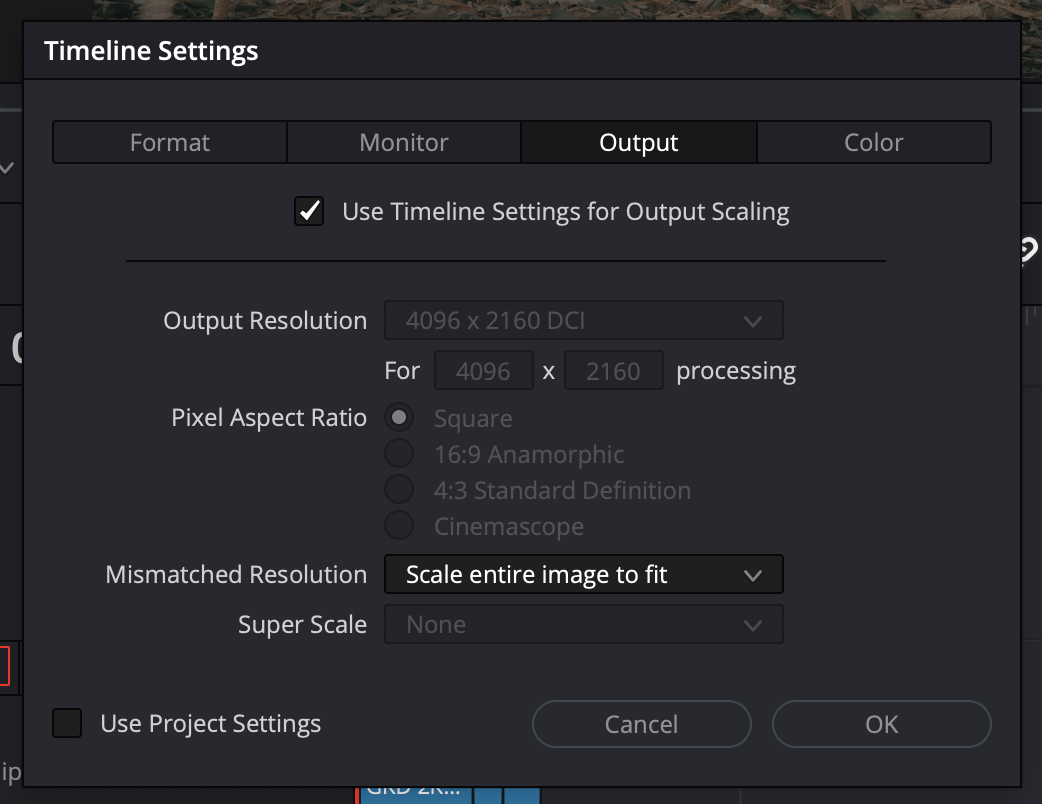
Side Note: Vimeo does allow you to specify a default resolution for playback, but it doesn’t work for mobiles and tablets. This only applies to embedded videos though, so you could embed your screener to a website and password protect it so people can only watch it in 2K (if that’s what you want). My screener was in 2K and I was happy with the results even in 2K, so resolution really isn’t that critical.
Step TWO:
You can approach this three ways:
- DaVinci Color Managed
- Color Space Transform at a node level
- Auto Tagging 709-A
For Color Managed, after you create your DSM, import that into a new timeline with these color settings:

That’s all you have to do.
If you want to use the Color Space Transform Node option, then these are the settings (Pick the correct Input Color Space and Gamma appropriate for your footage):

I recommend the CST node based method best, because you get full control over your project.
You also have a third option, which is checking a setting in Settings > General > General Preferences:

Check “Automatically tag Rec. 709 Scene clips as Rec. 709-A”. I don’t recommend this because my clips aren’t “Scene”. I prefer to be more precise and in complete control.
It gives the same results though:

Step THREE: Finally, here are the export settings for DNxHR HQ (you can replace them with Prores HQ):

That’s it!
I hope you found this article useful. I’ve only covered one use-case scenario. What other techniques and settings have you tried?
Please share your experiences and thoughts in the comments below.

Your comment above “The Gamma expected for YouTube and Vimeo is supposed to be Gamma 2.2.”
Where is this information from? I know that youTube transcodes to a 2.2 gamma, but others assume that youtube actually expects gamma 2.4 as it is bt1886 standard. If it is actually stated somewhere by youTube, would surely then be factual. But to this day after a lot of research, I have never seen this ( what seems so obviously important ) bit of information posted by youTube anywhere.
In fact youTube recommendations, I have also never seen the word “Quality” posted ever. “Best Results” and words to that affect, may include file size and upload and processing time as part of the “Best Result”. That never seems clear to me.
With the reading I have done on it, I think that colorsyncs math of the variable that they assume is done in camera when converting linear to non-linear ( camera gamma , display transfer ) of 1.96 and in other players/OS of 2.2, also creates a certain problem that the final display function in the math will have slightly different results.
It’s from the results observed. The results don’t lie. Rec. 709 Gamma 2.4 is only defined for television, blu-ray and HDTVs. AFAIK it hasn’t been updated for web delivery.
I can only guess as to why neither YouTube nor Vimeo strictly specifies it. A negligible percentage of their videos are actually monitored in Gamma 2.4 or DCI-P3. E.g., I’ve been making YouTube videos for a decade, and these videos are made on a Mac with no color management. They turn out exactly as viewed. But when I grade on a professional monitor things change. Even among all the content creators grading to Rec. 709, their monitors are iMacs or something similar, not grading monitors. With this setup, WYSIWYG, and that makes most consumers using these platforms happy. YouTube and Vimeo had no choice but to pick up the Rec. 709 standard even though it wasn’t designed for the web.
YouTube and Vimeo also don’t mention Levels. It is understood that output levels have to be video levels for delivery.
I would say don’t expect precise and exact results from a system that isn’t uniform to begin with. Web displays, browsers and software are all over the place. It’s basically like working with audio. You can’t control where your audience listens to your content.
Especially your last comment, for those of us who have worked in audio recording this is so right on and applies the same to Video/film. As creators we simply have no control of how and in what environment the consumers of our media will be viewing/listening. So I guess just target your export version to your main audience and how they will most likely be viewing…and perhaps this will lead to several different exports.. depending on the platform, and then just forget it and go onward to the next project..
This is what can be confusing. I think a lot of the rec709 for broadcast has “colored” (pun intended) the interpretation of color management and workflows for web, when they are two completely different monsters.
Broadcast and its peripherals and displays are standardized down to the tee, while the web, operating systems, browsers and their plethora of displays are a wild west.
This confusion reflects on every company involved, including OS manufactures and Youtube having different gamma and tag interpretations.
Apple and blackmagic/resolve are probably the closest to getting something standardized .
Thanks for sharing! The tag situation is silly but Resolve makes it somewhat manageable.